 PictureTextEditor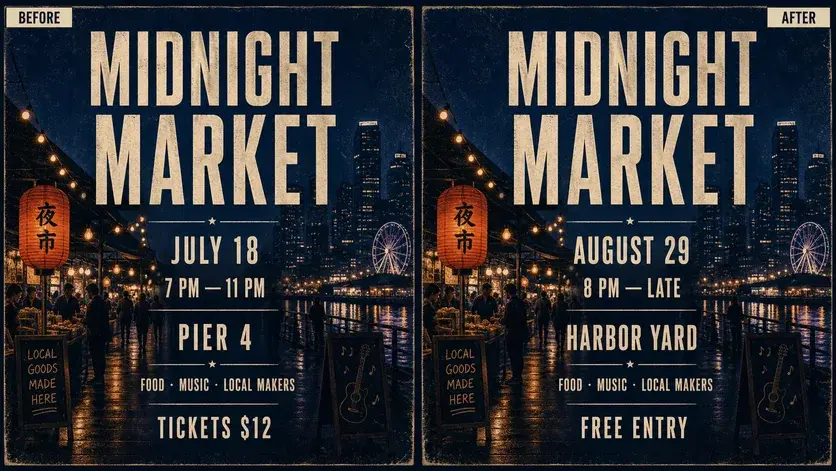
Replace "[old text]" with "[new text]" in the [location] of this image. Match the surrounding lettering and preserve the background, layout, and all other text.
Identify the exact words
Quote the existing words and their replacement. If the same phrase appears more than once, identify the location: the top headline, the second menu item, or the front of a package.
Explain what must stay
Name the background, layout, colors, other copy, logos, and objects that should remain in place. A narrow request makes it easier to compare the generated image with your original.
Allow for longer copy
Longer replacements may require a smaller type size or another line. Say whether to preserve the original line breaks, allow wrapping, or adjust spacing. For exact licensed fonts or print production, work from the original design file.
Review checklist
- Read every character in the new wording.
- Check line breaks and nearby copy.
- Compare the unchanged areas with the original.
Frequently asked questions
Will it reproduce the exact original font?
The image gives the editor a visual reference, but an exact font match is not guaranteed. Review letter shapes, spacing, weight, and perspective.
Can I replace several phrases at once?
Yes. List each old phrase and replacement separately. For dense images, smaller batches are easier to review.