 PictureTextEditor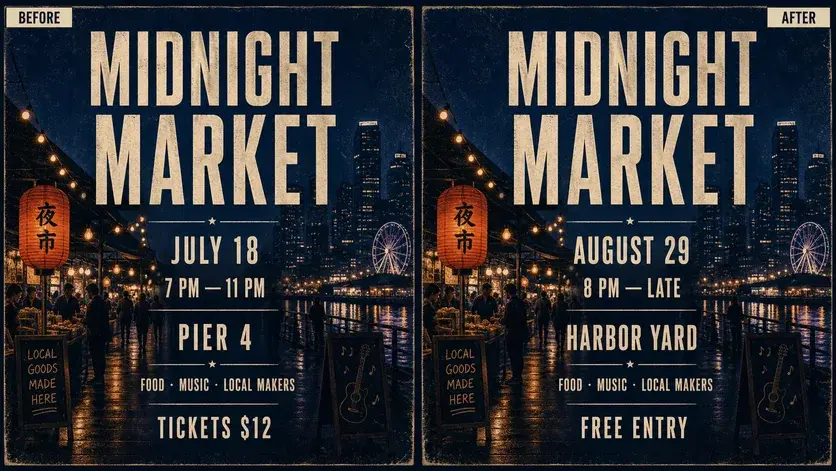
Replace "[old words]" with "[new words]" in the [location]. Preserve all other text and the original image composition.
1. Start with a clear image
Use the highest quality image you have permission to edit. Tiny or blurred letters are harder to reproduce. Keep the original so you can compare the result or start again.
2. Give a precise editing brief
Quote the old words and the full replacement. If there are several text blocks, name the target location. State which visual elements and other lines of text must remain unchanged.
3. Review and refine
After generation, check spelling, line breaks, alignment, and background continuity. If something is wrong, ask for one focused correction in the same session.
4. Download the final image
Inspect the actual downloaded file at its intended display size. Generated edits are flattened images, not a new set of editable text layers.
Review checklist
- The original file is saved.
- Every requested word is correct.
- The downloaded image is legible at the intended size.
Frequently asked questions
Do I need the original font or design file?
No source file is required for the AI edit. Exact font reproduction and pixel-level control are better handled with the original layered artwork.
Can I use this on a phone?
Yes. Upload, describe, review, and download in a mobile browser. Zoom in to check small text.