
Write the final copy before generating
Describe the intended wording and preserve the parts of the image that already work.
AI TEXT PLACEMENT
Use this workspace when the source image needs new wording rather than a replacement. Supply the exact copy, intended location, visual style, and hierarchy so the added text feels designed for the image instead of pasted on top of it.
Edit image textUpload a JPG, PNG, or WebP. Describe the exact text change.
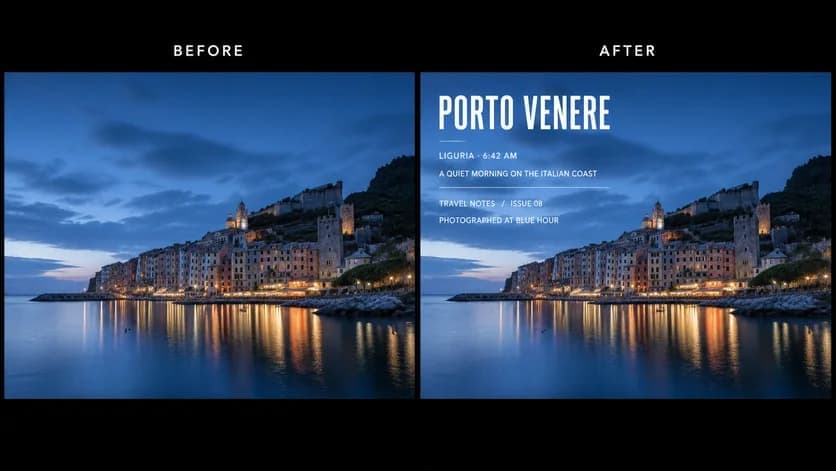
WHAT YOU CAN UPDATE
Use the finished image as context, make the requested copy change, then review the visual result before publishing.
Describe the intended wording and preserve the parts of the image that already work.
Describe the intended wording and preserve the parts of the image that already work.
Describe the intended wording and preserve the parts of the image that already work.
ABOUT THIS IMAGE EDIT
Put the exact phrase in quotation marks and include capitalization, punctuation, and line breaks that matter. For several lines, label the headline, supporting line, and call to action so their relative size and emphasis are clear.
Describe the area—top-left, centered in the empty sky, or beneath the product—and ask for enough contrast to stay legible. You can request a subtle shadow, outline, panel, or darker local background when the image is visually busy.
Specify whether the result should feel editorial, playful, premium, handwritten, or utilitarian. If the image already contains lettering, ask to match its weight, color, and perspective. Also state which faces, products, logos, or existing words the new copy must not cover.
Open the image text editorHOW IT WORKS
The editor uses your image and instruction as context. You stay in the conversation until the result is ready.
Start with a JPG, PNG, or WebP poster, photo, menu, screenshot, product visual, or AI-generated graphic.
Say exactly what to replace, remove, or add—and explain what should stay visually unchanged.
Check the result, ask for follow-up changes in the same chat, then download the version you approve.
Review before publishing. Check exact spelling, placement, contrast, and whether the new wording covers the subject.
COMMON QUESTIONS
Keep the phrase short, place it in quotation marks, and state that spelling and capitalization must be exact. Review the generated text before downloading.
Yes. Give a location and a visual anchor, such as “centered above the person” or “inside the empty cream panel on the right.”
Yes. Ask to match the existing font style, weight, color, texture, angle, or print treatment while preserving the original text and artwork.
MAKE THE EDIT
Open the editor here, upload your visual, and describe the exact result you want.